Installing as an app, working offline and self-hosting
Start layerling like a normal program, even without a network, and how to run it on your own computer.
Installing as an app
layerling can be installed like a normal program. It then gets an icon and a window of its own, without an address bar. After the first visit it starts even without internet. Your designs stay on your computer.
On the start page a hint with “Install now” appears if your browser can do it. Otherwise:
- Chrome and Edge: Click the install icon at the right of the address bar, or choose "Install as app" in the browser menu.
- Safari on the Mac: Menu "File", then "Add to Dock".
- Safari on iPhone and iPad: Share icon, then "Add to Home Screen".
- Firefox: cannot install apps. layerling still starts offline in a tab there.
You can close the hint on the start page with “Hide this hint”. Starting the installed app a second time in Chrome or Edge brings the open window to the front instead of opening another one.
Updates
When a newer version exists, layerling shows it on the start page. Through “Release notes & download” you read what has changed. The version number is at the bottom right. After reloading the page you have the new version.
On layerling.com and on other web servers an open page notices an update by itself. It asks the server for its version now and then, when you come back to the tab, and at once if a program file it needs has disappeared. When something new was installed in the meantime, a card at the bottom right says so and lists what is new. “Save and reload” writes the design you have open into the browser first and then loads the page again; the design comes back as you left it. “Later” holds the card back for 15 minutes. Reload soon: a page that stays on the old version may load parts of the new one that do not fit. The same card appears when that has already happened: the CAD workers, which load only when you first need them, say which build they are from, and if it is not the page's own - after an update, or with a stored copy of an older version - the card asks for a reload before the two misunderstand each other.
When layerling is open in several tabs, they look out for each other: if another tab already runs a newer version, a note at the bottom of the old tab asks you to reload it. And if the same design is open in two tabs, both warn you, because they save automatically and would overwrite each other. If you open layerling in one more tab while one is already open, the new tab suggests carrying on in the old one and offers to close itself. If you want two tabs on purpose, say for two designs side by side, click “Keep working here” there. This guide opens in a tab of its own as well: while layerling is open next to it, its button at the top right reads "Back to the editor" and closes the guide instead of opening the editor a second time.
Language and appearance
You set the language at the top right, German or English. The colour scheme beside it offers “System” (follows the operating system), “Light”, “Dark” and “Graphite”, a neutral dark grey.
Running it yourself
layerling is free software (AGPL-3.0) and can be run on your own computer or server, for example in a workshop, a club or a school. There are several ways, described in the README on GitHub:
- The quick start on Windows: A single line in PowerShell installs everything and puts a shortcut on the desktop. When layerling is already running, another double-click starts no second server and only opens the page.
- Docker: For NAS devices and home servers, without Node.js needing to be installed. Every release comes as a ready-made image
ghcr.io/henmedia/layerlingfor amd64 and arm64;docker run -d -p 3000:3000 ghcr.io/henmedia/layerling:lateststarts it, and on a NAS you add the image in its container manager. - Static export: The result is plain files that any web server can serve. They belong at the root of an address (
https://layerling.example.com/orhttp://192.168.0.5:8080/), not in a subfolder and not opened from disk; the README has the steps. With a writable folderstorenext toindex.htmland PHP on the server it also becomes the shared storage for designs.
The MCP bridge for AI assistants exists only in the development server, see Building with an AI.
Help and feedback
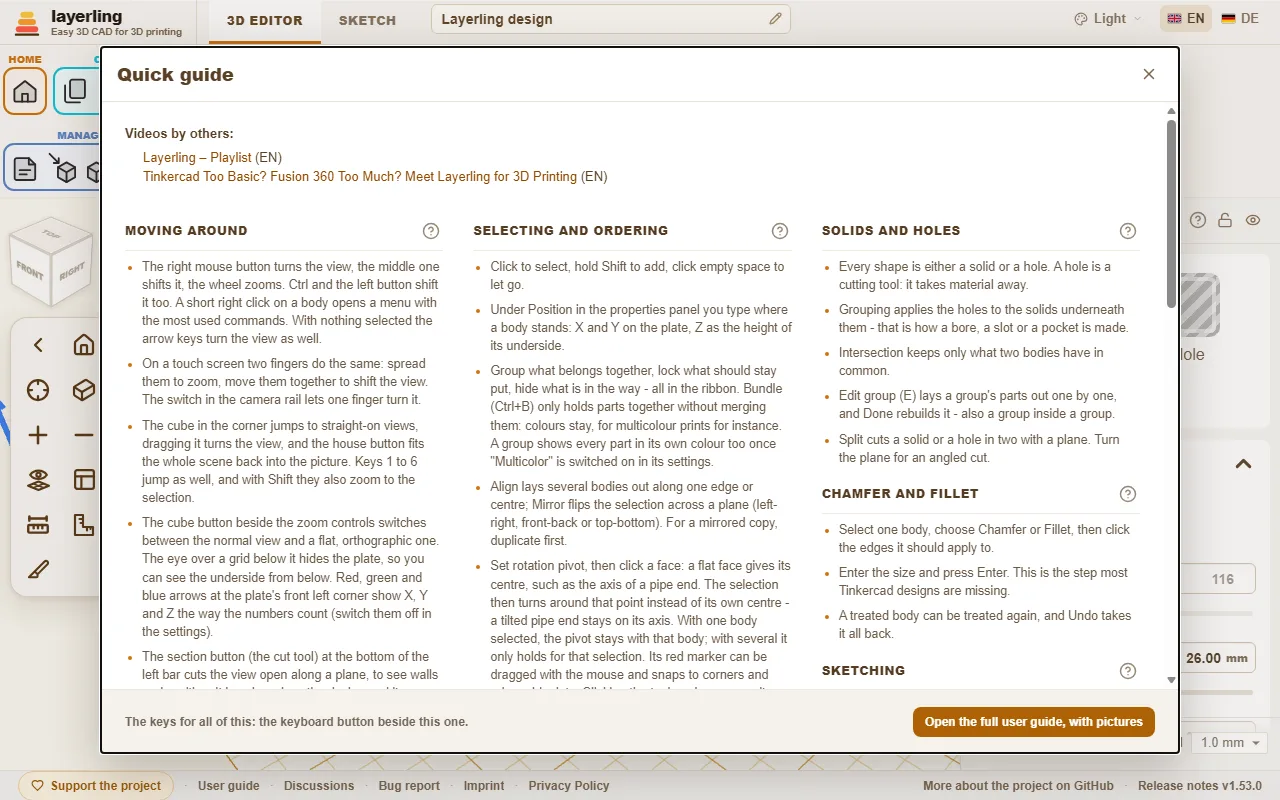
- In the editor, the “Help” area holds the “Quick guide” with the most important moves and the overview of keyboard shortcuts. Each section of the quick guide has a question mark that leads to the matching chapter here.