
Files, saving and sharing
Where your designs live, how to back them up, which formats layerling imports and exports, and what is possible on a shared server.
Where your designs live
layerling saves everything in the browser on your computer. There is no account and nothing is uploaded. Every change saves itself. The preview picture on the start page shows the view you last had in front of you when you went back with “Home dashboard”. If you open layerling in the same browser days later, everything is there.
If you go back to the start page from a design with nothing in it, layerling asks whether to keep it. “Yes” or Enter keeps it, “No” removes it, so empty designs do not pile up. Designs in a shared folder on a server are not asked about.
That has a downside: whoever clears the browser storage or switches to another computer loses the designs. So back up important work into a file.
Backing up and passing on
On the start page every design has a menu with the options to rename, duplicate and delete. With “Back up all” you pack all designs into one single file. Through “Open a design or import geometry” they come back, also in another browser or on another computer. The “Custom shapes” of this browser travel in the same file, in the folder Custom shapes, see Shapes.
You back up a single design in the editor: “Export”, choose the format LYL and click “Save layerling design”. The LYL file is layerling's own design format and contains everything: shapes, groups, sketches, CAD data, imported sources and the history, meaning the undo steps. Under “Saved action history” you choose how many of the last steps travel along; it starts at what the settings (the cogwheel in the ribbon) keep under “History”. The last stop, “None”, saves the design with its current state only - the way to share a file without its undo steps. The export is a copy under the “File name” you give it; the design in your browser keeps its history. Older .skf files from earlier versions can still be opened; they are then saved as .lyl.
Saving into your own folder (Chrome and Edge). There the button opens your system's save dialog, so you pick the folder and the name yourself, and an existing file can be replaced. Afterwards Ctrl+S saves the design into that same file again, without a dialog. A design opened from a .lyl file with “Open a design or import geometry” or the open button of the export window saves back into that file, too. The browser may ask once for permission to change the file. After the page is reloaded the design forgets its file, and the next Ctrl+S asks for it again; the dialog starts in the folder you used last. Firefox and Safari do not allow a page to write into files like this. There the file is downloaded to the Downloads folder as before, and Ctrl+S downloads it again; Firefox can be set to ask for the folder each time under Settings, General, Downloads.
Exporting
Click “Export” or press Ctrl+E.
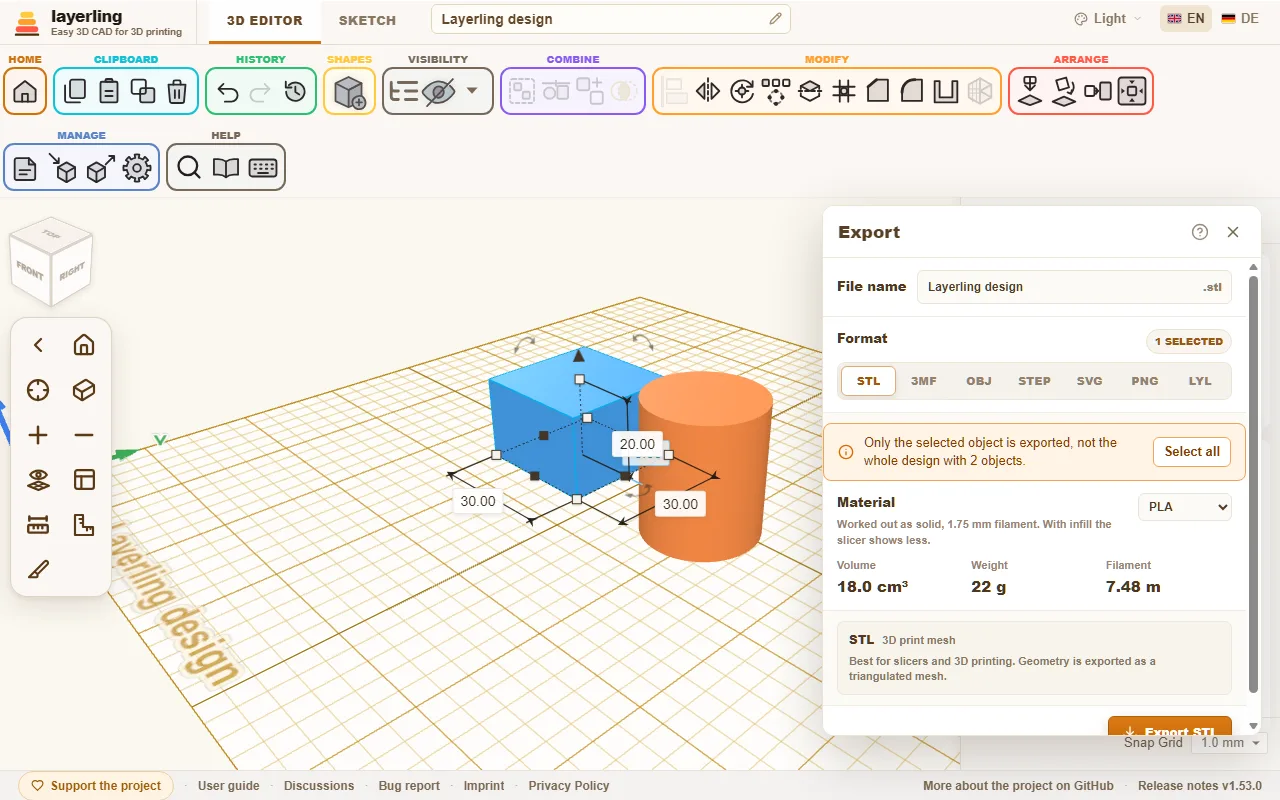
At the top is the file name, below it you choose the format. With something selected, only the selection is exported, otherwise the whole design. If the selection leaves out visible parts, a note in the window says so plainly, and “Select all” selects everything visible in one click. Once the file is written, the window closes by itself; if the export fails, it stays open with the message.
| Format | For | What to know |
|---|---|---|
| STL | slicer and 3D printing | A triangle mesh. The simplest and most widespread format. |
| 3MF | slicer with colours | Every body stays a part of its own with name and colour. Overlapping bodies are only joined when they share a colour; where a shape sits inside one of another colour, say a logo in a plate, the one built first leaves room for the later one. Suited to PrusaSlicer, Bambu Studio, OrcaSlicer and Cura. Bambu Studio and OrcaSlicer ask on opening how to map the colours onto your filaments, and call the file "not from Bambu" - the message is harmless. |
| OBJ | modelling and exchange | A widely supported mesh format. Colours are stored as vertex colours in the same file, with no extra .mtl. Bambu Studio and OrcaSlicer read them and ask, as with 3MF, how to map them onto your filaments; other programs see only the shape. As with 3MF, overlapping bodies are only joined when they share a colour. |
| STEP | a full CAD program | Keeps boxes, cylinders, spheres and cones as exact geometry, and so shapes made from an outline (star, heart, ellipse, tube, half sphere, round roof, rounded box, dovetail, the bores and more), the bent tube, threads, springs and gears, plus fillets and chamfers. The first STEP export in a session loads the CAD kernel (about 22 MB) once. |
| SVG | laser cutter and plotter | A clean top view in millimetres, including holes and curved outlines. |
| PNG | forum posts, print sites, questions | A picture of the view as it is, at twice the resolution and without handles, selection frames and dimensions. “Show the build plate” and “Transparent background” are chosen in the window. Turn and zoom first until the picture is right; the selection does not matter here. |
| LYL | layerling itself | The editable design with everything that belongs to it. |
STL into your own folder (Chrome and Edge). There the first STL export of a design opens your system's save dialog, so you pick the folder and the name yourself and can replace an existing file. After that every STL export of the design writes into that same file without a dialog; the export window shows which file, and Save as… next to the export button picks another. The dialog remembers its own folder, apart from the one for designs, so the slicer files can stay with the slicer. After the page is reloaded the design forgets its STL file and the next export asks again. Firefox and Safari download the file as before.
A hole you have not grouped is taken out of every body it reaches when you export, as the view shows it. So there is no need to group before each export. With a selection, only the selected holes count. A hole cannot be exported on its own; layerling points that out.
STEP only carries exact CAD bodies. What cannot be written exactly, such as a mesh imported as STL, is left out. The message after the export names those bodies and says why. For the printer, use STL or 3MF, which carry everything.
How much filament does it take?
For STL, 3MF, OBJ and STEP the “Material” box shows the volume, weight and length of 1.75 mm filament of what is exported. It counts like the file: visible bodies only, holes taken off, overlaps only once. On the right you pick the filament - PLA, PETG, ABS, ASA, TPU or PA (nylon) - and the weight follows its density. It is worked out as solid, as if printed with 100 % infill. With walls and infill the slicer shows less; the number is the upper bound, good for comparing and for whether the spool will last.
Importing
With “Import” or Ctrl+I you bring foreign files into the design.
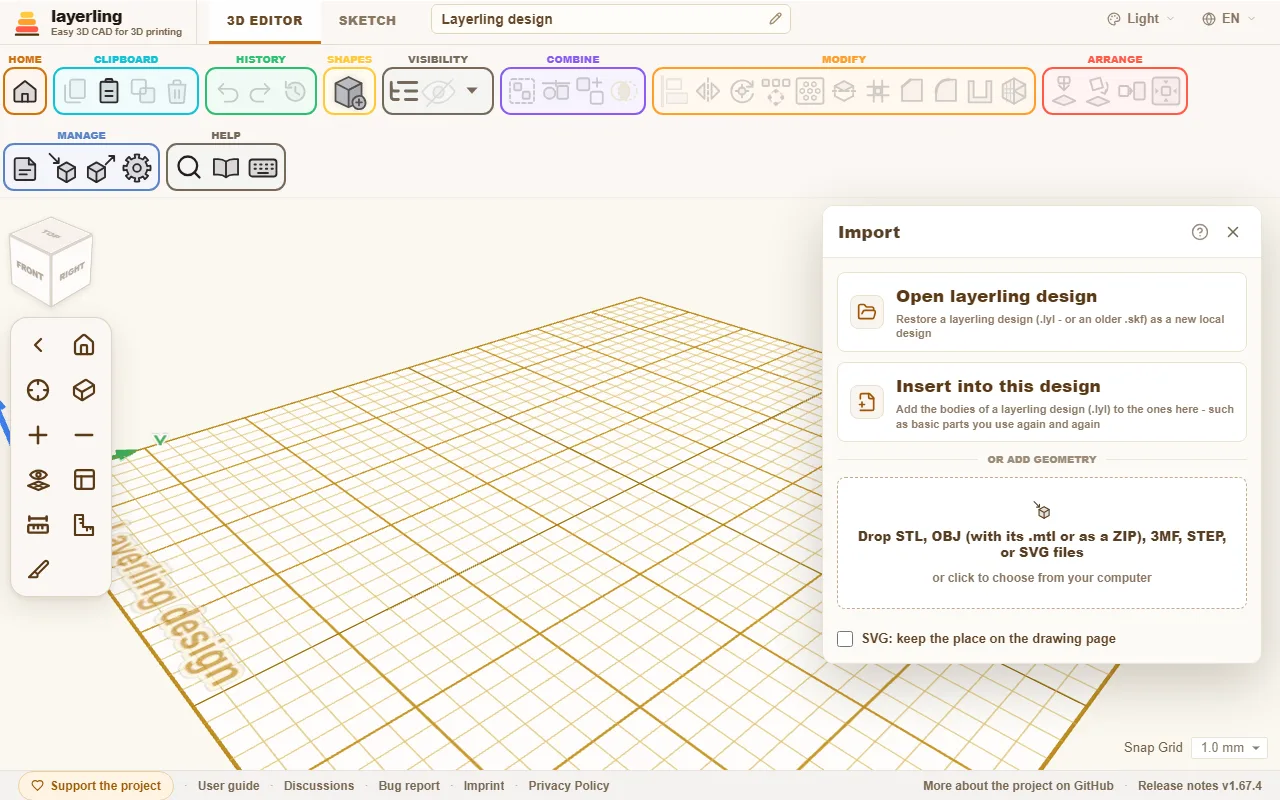
- “Open layerling design”: A layerling design (
.lyl, or an older.skf) comes back as a new design. - “Insert into this design”: The bodies of a layerling design are added to the open one. Handy for basic shapes you need again and again: build them once, save them and bring them in every time.
- Add geometry: Drop STL, OBJ, 3MF, STEP or SVG files in the window or click to choose a file. Imported meshes can be turned, moved, cut with holes and built upon. An SVG comes in as a sketch body, one from a tracer such as picsvg.com or Inkscape's "Trace Bitmap" as well: its outlines become the lines and curves of a sketch, 4 mm high and reading from above as in the drawing. In the properties you set its “Fill”, an area or a stroke outside, inside or centred, and “Silhouette (No Holes)” leaves the holes out, see Sketches, "Fill and silhouette". You change the points themselves in sketch mode. Only a very intricate SVG with more than 2500 lines and curves comes in as a fixed mesh. A shape that cannot be built into a solid, such as an outline that crosses itself or touches itself at a point, is left out, and after the import layerling says how many there were. Then it helps to join overlapping pieces in the drawing program, close the outlines and save the file again. Drawings made on one page, such as the layers of one document exported as separate files, line up again when you switch on “SVG: keep the place on the drawing page” in the import window before you import them: each keeps its place on the page, where otherwise each is centred on itself. A coloured OBJ or 3MF comes in as one body per colour, each in its place. In an OBJ the colours sit either in the file itself, as in an OBJ from layerling, or in an
.mtlbeside it. Select that one too, or import the whole ZIP the way Tinkercad hands out its OBJ. A 3MF carries its colours itself, and in a project from Bambu Studio, OrcaSlicer or PrusaSlicer each part takes the colour of its filament. A 3MF with several objects, such as a project with one object per plate, comes in as one body per object; modifiers, negative volumes and support blockers from the slicer are left out. Colour painted onto faces in the slicer is not read.
A design saved with a newer layerling may hold things your version does not know yet, such as a new shape, a new setting or fonts of one's own. If layerling cannot open it for that reason, the message names both versions. If it opens, the notice says that newer things may look different here. Either way, reloading the page helps: layerling.com always serves the newest version. The installed app picks it up the next time it starts; on your own server you install the update.
Template pictures are added in sketch mode, see Sketches.
Simplifying an imported mesh
A scanned or sculpted mesh often has far more triangles than its shape needs, and every one of them is carried along while you move, cut and save. “Simplify mesh” in the Modify group (or in the right-click menu of the body) shows the mesh as it is next to what a chosen share of its triangles would leave of it; both views turn and zoom together with the mouse buttons of the workplane. Set how much to keep as a percentage or a number of triangles, and “Simplify” takes the lighter mesh. The result is a plain mesh: for the result of a cut or merge, “Edit group” and its original parts are given up.
Cutting, merging and intersecting an imported mesh is calculated in your browser, so the workspace settings limit how many triangles such a mesh may have (“Cut imported meshes up to”). A mesh above the limit is not processed, and the message names its triangle count; simplify the mesh first, or raise the limit if your computer can take it.
Reporting a bug
If layerling does something unexpected, save a “Bug report”: the link sits in the footer at the bottom, next to the forum. It is a ZIP file, because GitHub and many forums refuse a bare .lyl: inside are your design as a .lyl and a short text file with the version, browser, screen size, the last messages and any errors. The start page opens the ZIP like a backup, or you unpack it and open the .lyl. Nothing personal is in it. Attach the file to your post in the forum or on GitHub, so the problem can be followed with exactly your design.
If layerling stops with an error, a window with the error message shows instead of a blank page. From it you can save the state of the design last stored in the browser as a .lyl file, go back to the overview, or start a new design. The error message from the window and the saved file help when you report it.
Shared designs on a server
When layerling runs on your own computer or web server, it can offer a shared folder in which all users keep designs. On the start page it then appears as “On the server”. You create folders there, move designs by dragging and search across the whole folder. A design that lives there saves itself back to it. A design from this browser goes onto the server by dragging its card onto the server tile, or with “Put on the server” in the card's menu. A backup you open lands in this browser first, like any design you open; put the designs on the server from there. The start page shows a design by its file name, so renaming a design, on its card or at the top of the editor, renames the file on the server too. Deleting a design or a folder removes it for good, together with its working copy in this browser. Custom shapes kept on the server sit in its folder Custom shapes, see Shapes.
That is not simultaneous editing: whoever opens a file works on a copy of their own. If somebody else has changed the file in the meantime, layerling refuses to overwrite it.
On layerling.com this function is not switched on. How to set it up on your own server is described in the README on GitHub.